
Dear customer,
Welcome to Construsoft! Thank you for choosing our Timber Package for Tekla Structures. This opens the door to a new digital Timber environment with many possibilities!
This article will help you to get started with the Timber Package. Now that your license is active, it's time to get started.
Step-by-Step Guide to Installing the Timber Package
1. Log in to Construsoft Tools Management using your Construsoft credentials (sent to you after purchase). Once logged in, access the Timber Package installation file from the online shop.
2. Download the Timber Package and save the installer in a safe place. This installer adds the Timber International Environment and its components to Tekla Structures. You can also use it for updates.
3. Download the Timber Objects extension: Tekla Timber Objects. If it's not already in your Tekla Structures, install it to enhance your Timber experience. Save the installer securely and install the .tsep file. For help, see Install .tsep packages.
Note: If you already have a Construsoft Environment like “Netherlands” or “European”, stop and get Timber extensions from the Warehouse.
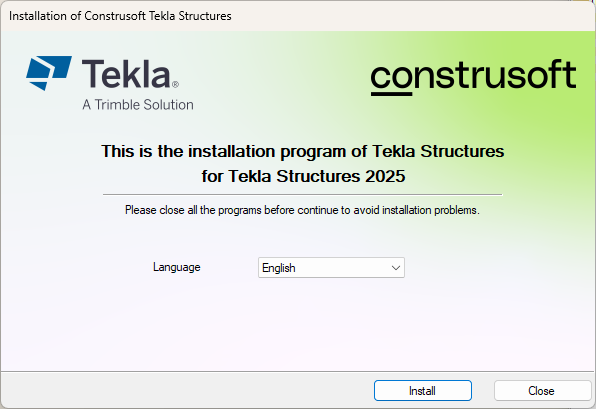
4. Run the Timber Package installer. Double-click “Construsoft_TS[TeklaVersion]_ConstrusoftTimber.exe”, select your language, and click Install.
Note: If the Timber Package is already installed, you’ll see an Update option instead of Install.
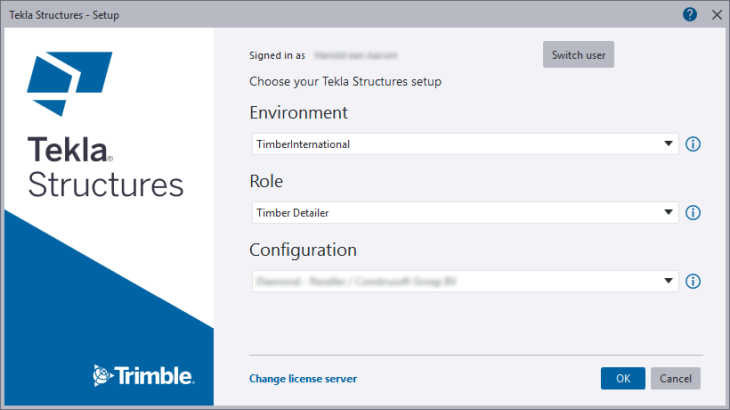
• Open Tekla Structures. On the Setup screen, select “TimberInternational” as the Environment. The Role will default to “Timber Detailer,” the only available option for this environment.
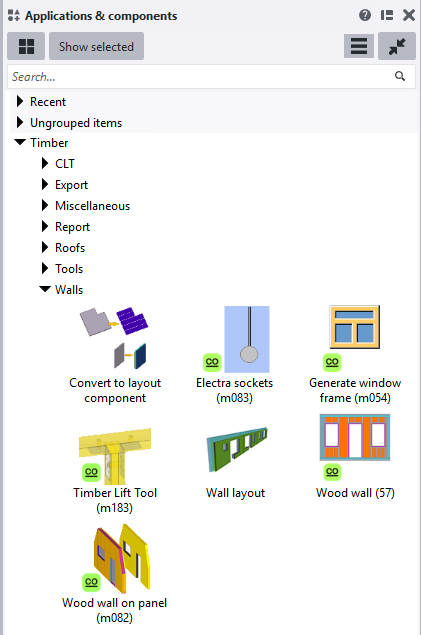
- Create or open a model and you are ready to start modeling timber.

Need assistance or more information?
You are already in the Construsoft Support Portal. Please log in using your Web Shop credentials. If you require assistance with registration, refer to this article. Once logged in, you will have access to installation files, help articles, FAQs, news, tips, and the option to contact our international Support team through the Contact Support form.
Simply click the 'Contact Support' button, select 'Customer Support', choose your region, and complete the request form with a detailed description of your inquiry. We will respond to you promptly.
Are you a license administrator with multiple licenses?
- Add employees: As a license administrator, you can add colleagues and assign licenses. Log in to the Web Shop and follow the instructions.
Online Learning:
Access our e-learning courses through Construsoft Campus. You can purchase the courses you need in our Web Shop.
Our Support:
Getting started with new tools can be challenging. We offer comprehensive support through our Support Portal, where you’ll find help articles, FAQs, news, and tips.
If you can’t find an answer, submit a ticket on the Support Portal portal.
Enjoy your first steps with the Timber Package!
The Construsoft team
Comments
0 comments
Article is closed for comments.